Generating a High-Level Overview of Rental Finances
Link to Video Tutorial
https://loom.com/share/3c1de9279ea1402181caec56acbe855e
Objective
This guide outlines the steps to download a comprehensive CSV report of rental earnings for a specified year from the host dashboard.
Key Steps
Step 1: Access the Finance Section 0:02
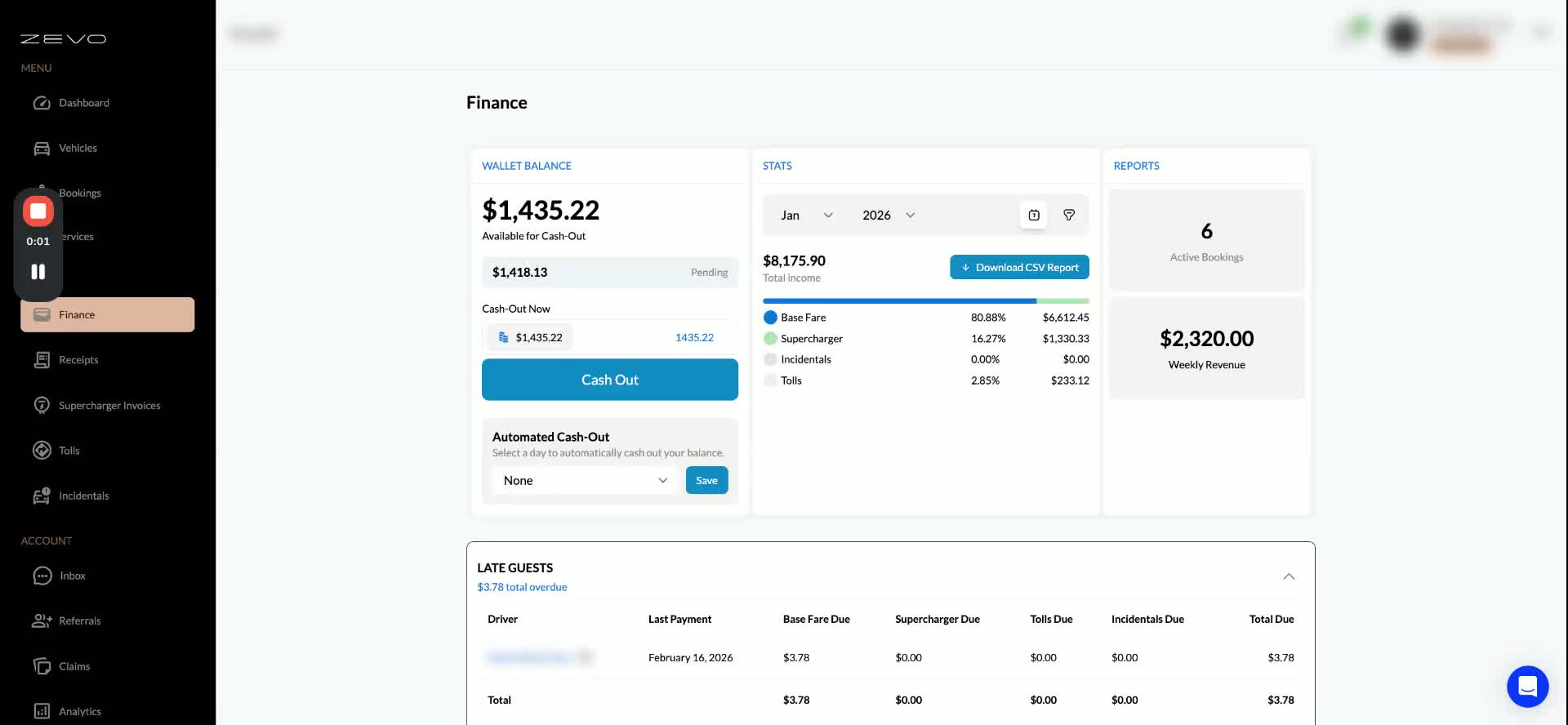
- Navigate to the Finance section in your host dashboard.
- Ensure you are logged into your account.
Step 2: Select the Year for the Report 0:16
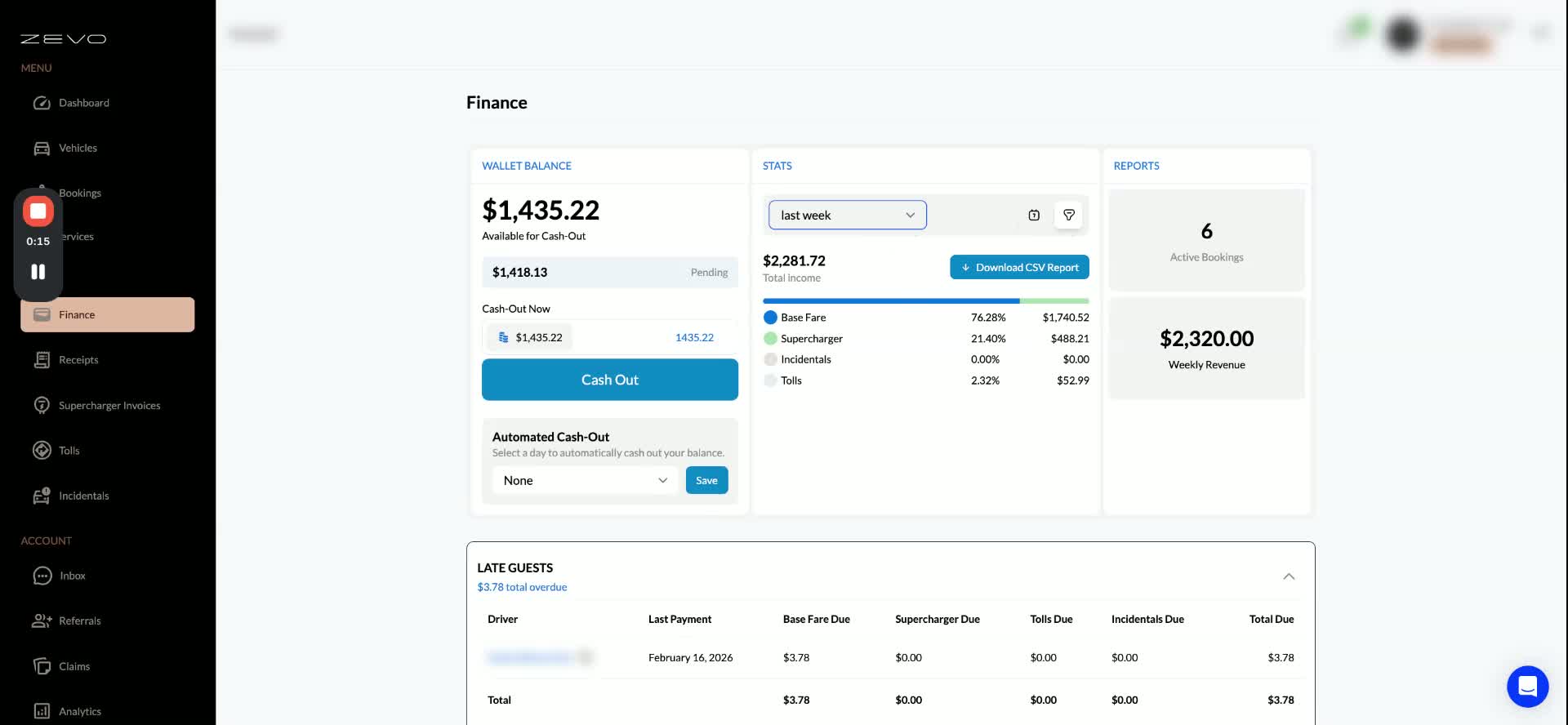
- Locate the toggle option in the Finance section.
- Select the year (e.g., 2025) for which you want to generate the earnings report.
Step 3: Download the CSV Report 0:27
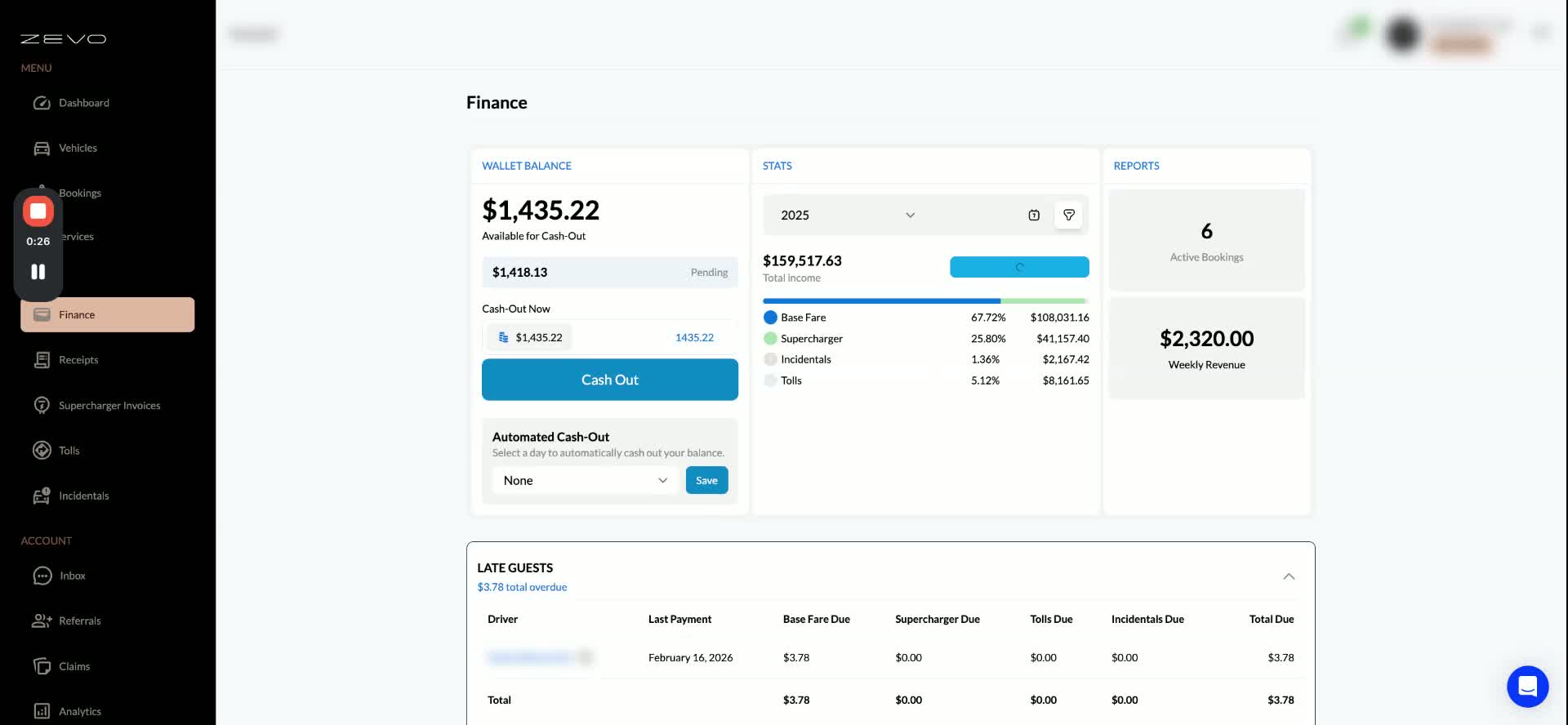
- Click on the download button to obtain the CSV report.
- This report will contain detailed financial information.
Step 4: Review the Itemized Breakdown 0:38
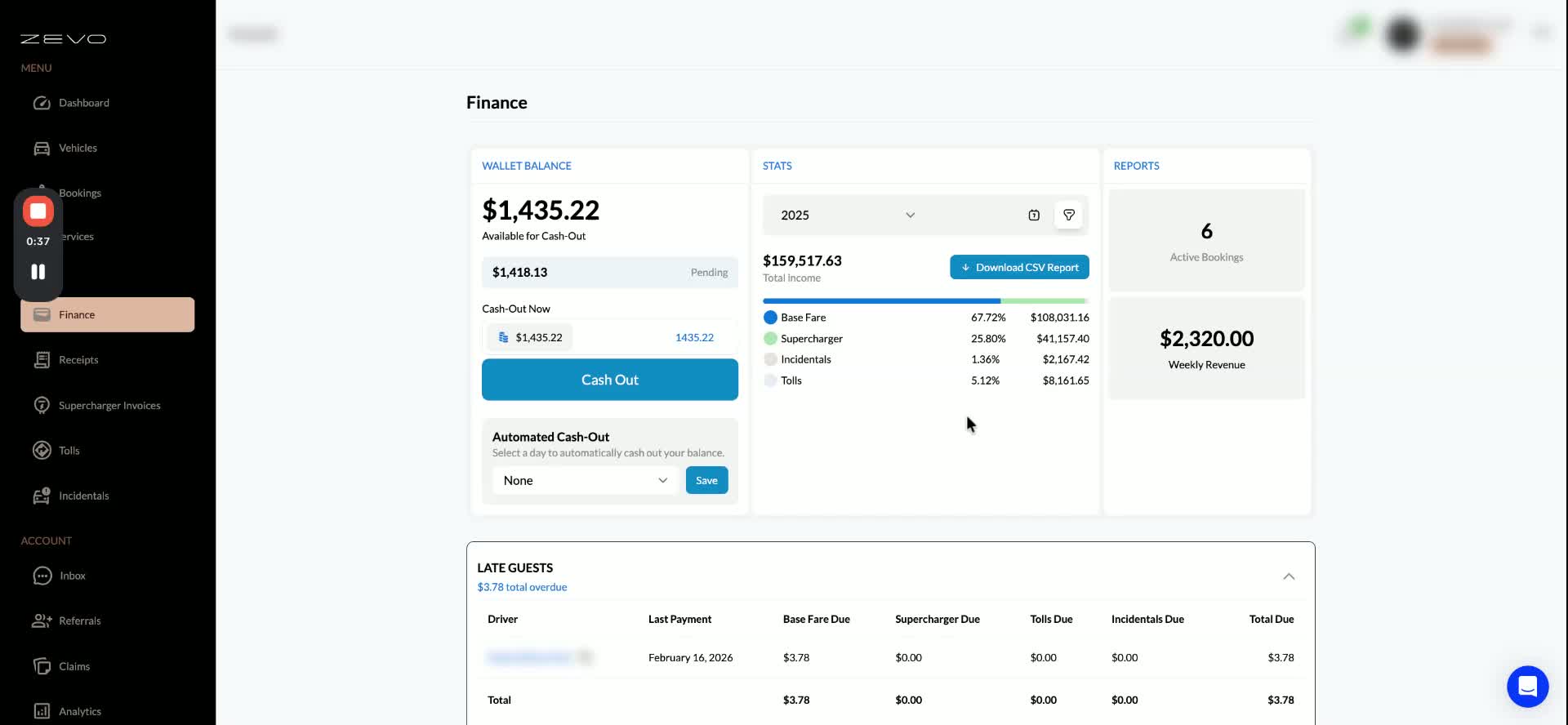
- Open the downloaded CSV file.
- Review the itemized breakdown of earnings, which includes:
- Base fares
- Supercharging
- Incidentals
- Tolls
- Each entry will be listed per VIN under your Zevo host dashboard account.
Tips for Efficiency
- Regularly download and review your financial reports to stay updated on your earnings.
- Familiarize yourself with the CSV format to quickly locate the information you need.