Guide: How to Export CSV/XLSX Tolls File from SunPass
This guide will walk you through the process of exporting your toll transaction data from the SunPass toll agency in Florida.
Step 1: Access Your SunPass Account
- Go to the official SunPass website at www.sunpass.com
- Click on "Log In" in the top right corner
- Enter your username and password
- Click "Sign In" to access your account dashboard
Step 2: Navigate to Transaction History
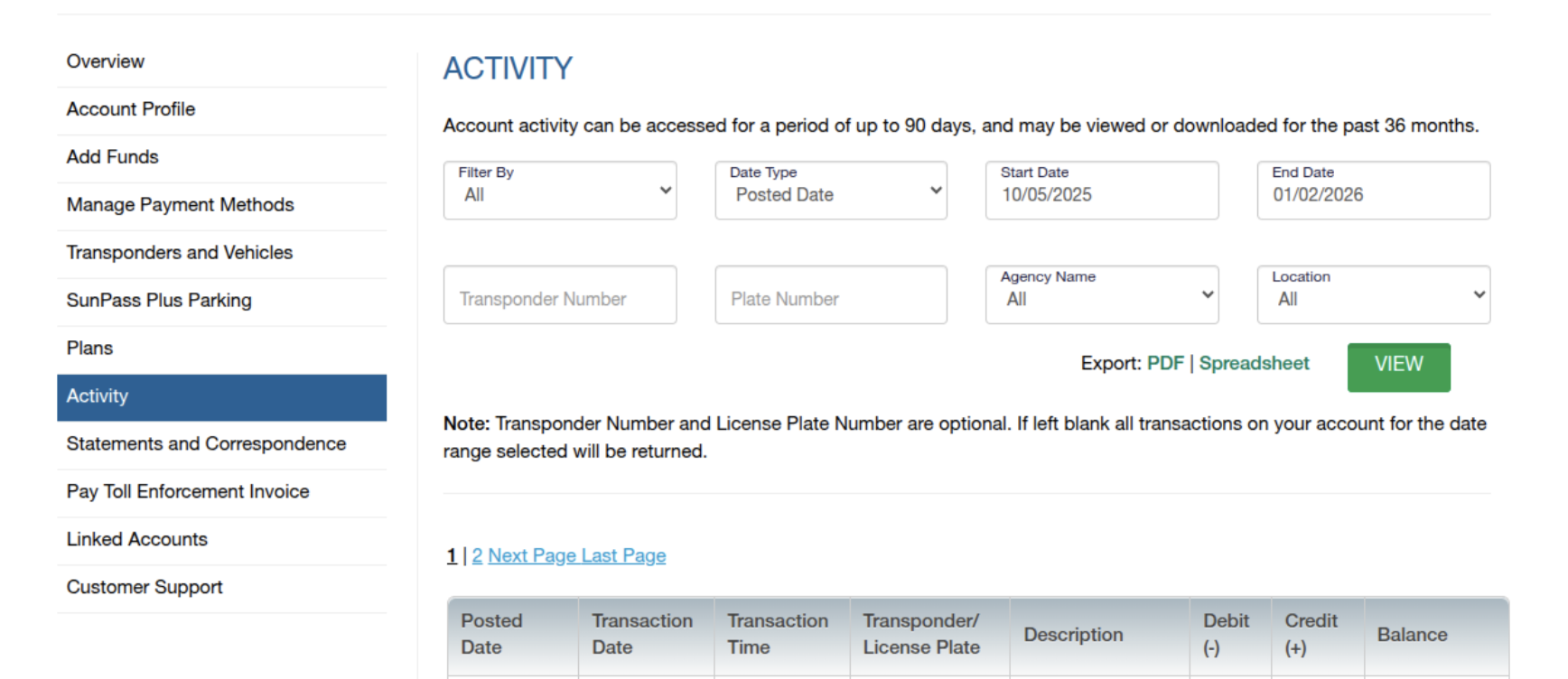
- Once logged in, locate the "Overview" section in the left sidebar and select "Activity" section in the main menu
Step 3: Set Your Date Range
- Select the date range for the transactions you want to export
- You can typically choose from preset options (last 30 days, last 90 days, etc.) or enter custom dates
- Click "View" to display the transactions for your selected period
Step 4: Export the Data
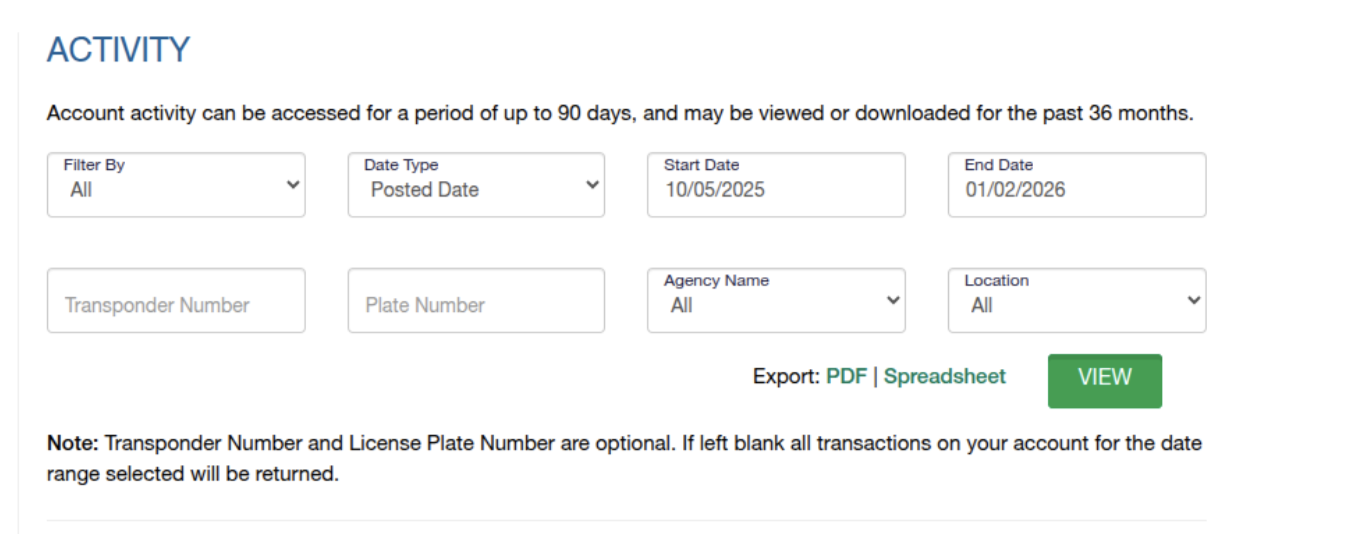
- Look for an "Export" or "Download" button, typically located near the top or bottom of the transaction list
- Click on the export option
- Select your preferred file format —> Here select “Spreadsheet” as this is the only format accepted by ZEVO currently.
Step 5: Locate and Open Your File
- Check your computer's Downloads folder for the exported file
- The file name will typically include the date range and "SunPass" or "Transactions"
- Open the file using Excel, Google Sheets, or any spreadsheet application
Important Notes
- File Format: CSV files are plain text and universally compatible, while XLSX files preserve formatting and are better for Excel users
- Data Included: Exports typically include transaction date, time, location, toll amount, and transponder number
- Download Limits: Some accounts may have limits on how far back you can export data (typically 12-18 months)
- Processing Time: Recent transactions may take 24-48 hours to appear in your account
Troubleshooting
- If you don't see an export option, ensure you're viewing the full transaction history page
- Try using a different web browser if the download button isn't working
- Contact SunPass customer service at 1-888-TOLL-FLA (1-888-865-5352) if you continue to experience issues
For the most up-to-date instructions, always refer to the official SunPass website as their interface may change over time.